Creating a new database
Before installing, you will need to create a new database. If you already know how to do this or have already created one, skip to the next step. In most cases you should be able to create a database from your cpanel:


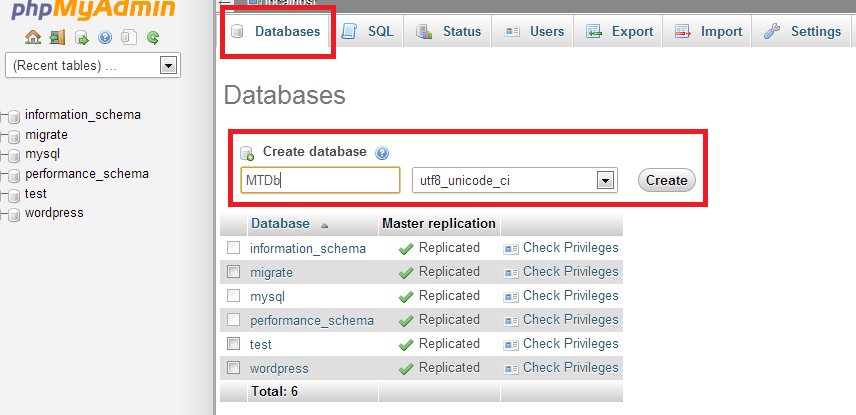
Sometimes you might need to create a database from phpMyAdmin in your cpanel:

Click on the database tab in the top menu, enter any name for your database and click create.
Changing domain default directory
While this step is optional in most cases, it is highly recommended you do this for security reasons. You should change default directory for your website content from root folder to public sub-folder. You should be able to do this from your cpanel.

Uploading Files
After creating a database, unzpip the .zip file you downloaded from CodeCanyon and upload only contents of website folder to your ftp root folder (usually called www or html or something similar) or a sub-directory. After upload, you should have something like this on your server:

Installation Wizard
After you created a database and uploaded the files, simply open up your site in the browser and follow on-screen instructions to complete the installation.
